表格组件
前后通信方式
查看旭纸业项目 cl_order_bill_storage.js # grid_1 对表格的定义和使用
let dataSource = new kendo.data.DataSource({
    transport: {
        read: {
            url: "materialOrderReport/store",
            dataType: "json",
            type: "GET",
            data: {
                storeSid: storeSid
            }
        }
    },
    schema: {
        model: {
            id: 'id',
            fields: {
                order_date: {type: "date"},
                square_area: {type: "number"},
                amount: {type: "number"},
                volume: {type: "number"},
            }
        }
    },
上面代码使用 get 方式获取数据,参数是 storeSid,后端 java 代码
@GetMapping("/store8store")
@RequiresPermissions(MenuConstant.MENU203 + SeparatorConstant.SEPARATOR + OperateConstant.SHOW)
public List<Map<String, Object>> materialOrderStoreReport8Store(String storeSid) {
	return service.getMaterialStoreReport8Store(storeSid);
}
即不要使用 json 方式获取参数,类似 form 方式直接定义和前端参数属性(storeSid)同名的变量即可 那么刷新表格数据的方法如下,即接受 combobox 变动后的新 val 作为参数请求数据并刷新表格
function onChangeStore(newVal,oldVal){
    $("#v_grid").data("kendoGrid").dataSource.read({
        storeSid: newVal
    });
}
修改指定行指定列数据
const grid = $("#e_grid").data("kendoGrid");
const selectedRowIndex = getSelectedRowIndex('e_grid');
const dataItem = grid.dataSource.at(selectedRowIndex);
dataItem.set("drawingid", "");// 修改选中行的指定字段的值
grid.refresh();// 刷新表格


// 获取选中的多行的第一行的 rowIndex
function getSelectedRowIndex(gridId){
    let kGrid = $(`#${gridId}`).data('kendoGrid');
    const allRows = kGrid.items();
    const selectedRow = kGrid.select()[0];
    const selectedIndex = allRows.index(kGrid.select());
    console.log('选中的行:',selectedRow);
    console.log('选中行的rowIndex:',selectedIndex);
    return selectedIndex;
}
上移选中行
// 将选中的行上移
// gridId: kendoGrid 的ID
// fileName:表格数据的主键字段名称
function moveUp(gridId,fileName){
    const kGrid = $(`#${gridId}`).data('kendoGrid');
    const kGridData = kGrid.dataSource.data();
    const selectedFirstRow = kGrid.select();
    const selectedFirstRowData = kGrid.dataItem(selectedFirstRow);

    let oldIndex = -1;
    for(let i=0;i < kGridData.length;i++){
        if(kGridData[i][fileName] === selectedFirstRowData[fileName]){
            oldIndex = i;
            break;
        }
    }

    if(oldIndex === -1 || oldIndex === 0) return;
    const newIndex = oldIndex - 1;

    const deletedArray = kGridData.splice(oldIndex,1);
    kGridData.splice(newIndex,0,deletedArray[0]);

    kGrid.dataSource.data(kGridData);
    kGrid.select(`tr:eq(${newIndex})`);
}
手动操作数据数组
可以从外部赋值数据数组给表格,可在外部排序后赋值
$("#grid").data("kendoGrid").dataSource.data([]); //清空数据源
$("#grid").data("kendoGrid").dataSource.data([{ name: "aaaa //Doe", age: 30 },{ name: "aaaa Doe", age: 23 }]);//绑定数据源
$("#grid").data("kendoGrid").dataSource.add({ name: "John Doe", age: 33});//增加数据源
获取所有行数据
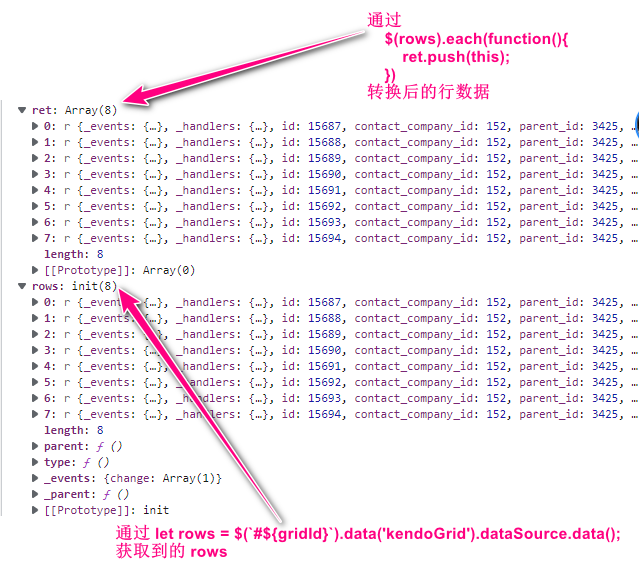
下面代码中的 dataSource 是属性,后面的 data() 是方法,返回数据行构成的数组
let rows = $('#v_grid').data('kendoGrid').dataSource.data()
实际返回的对象数组中在对象属性之外还有 kendoGrid 额外添加的 _events 对象,_handlers 对象等等。 忽略额外属性时,可通过遍历 rows 获取每一行数据。
获取使用 jquery 遍历后过滤掉多余的属性,只保留实际数据属性:
function getKendoGridAllRow(gridId){
  const kendoGrid = $(`#${gridId}`).data("kendoGrid");
  let rows = $(`#${gridId}`).data('kendoGrid').dataSource.data();
  let ret = [];

  $(rows).each(function(){
    ret.push(this);
  })

  return ret;
}
 官方还有案例,仅供参考:
const row = $("#表格ID").data('kendoGrid').dataItem($(this))
遍历选中的行
2023年2月5日 测试方法 kendoGrid.select() 只会获取多选的第一行数据 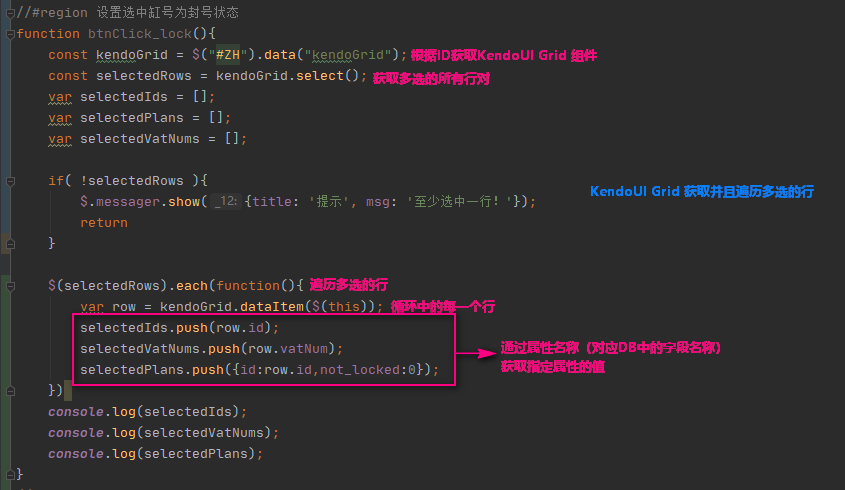
上面的方法不太对,看下面的代码
const detailgrid = $('#表格ID');
var row = detailgrid.select();
var data = detailgrid.dataItem(row);
console.log(data);
获取过滤后的所有数据
function getKendoGridFilterData(gridId){
    if(!gridId) {
        alert('没有传入表格ID');
        return;
    }
    let dataSource = $(`#${gridId}`).data('kendoGrid').dataSource;
    let filters = dataSource.filter();
    let allData = dataSource.data();
    let filterSource = new kendo.data.Query(allData);
    let filterData = filterSource.filter(filters).data;
    return filterData;
}
刷新表格数据
官方文档提供的 .refresh() 是拿当前表格数据 - js 数组 - 重新构建表格,而不是重新查询后端数据再构建,要实现后者的效果使用下面的方法:
$("#ZH").data("kendoGrid").dataSource.read({
	start: $('#start').datebox('getValue'),
 	end: $('#end').datebox('getValue'),
	column: 'status', value: 1
});
最小列宽
列头两个汉字:65px 仅仅日期:79px 仅显示内容的两个汉字:43px,当客户名称是三个汉字时只会显示第一个+省略号,所以合理的宽度是:52px 序号列宽度(支持到三位数):36px
提示
可通过属性 minResizableWidth 为每个列设定最小列宽,通过鼠标拖拽调整列宽时最小不能小于该数值,只填写数字不需要计量单位
过滤与数据绑定
数字比较类型过滤
如果使用了下面代码的过滤则表现为下拉多选,注释掉则为数字比较大小的过滤方式
{
    field: "diffQty",
    title: '配料单布重-刷卡产量公斤',
    width: 200,
    template: function (item) {
        return item.diffQty ? parseFloat(item.diffQty).toFixed(1) : ''
    },
    // filterable: {multi: true, search: true},
    headerAttributes: {style: 'text-align:center;'},
    footerTemplate: '#=kendo.format("{0:n1}",sum)#',
    attributes: {'class': 'kendo-custum-number'},
    footerAttributes: {'class': 'kendo-custum-number'}
},
同时注意定义表格诸多参数时添加该字段的数字类型以及合计数据
    var dataSource = new kendo.data.DataSource({
        transport: {
            read: {
                url: "cjflowbill/getDyeProcessReport",
                dataType: "json",
                type: "post",
                data: {
                    start: $('#start').datetimebox('getValue'),
                    end: $('#end').datetimebox('getValue'),
                    column: $('#column').textbox('getValue'),
                    value: $('#value').textbox('getValue'),
                }
            }
        },
        schema: {
            model: {
                id: 'billCode',
                fields: {
                    createDate: {type: "date"},
                    ratio: {type: 'number'},
                    kilo: {type: 'number'},
                    bQtyfact: {type: 'number'},
                    bClothWeight: {type: 'number'},
                    diffQty: {type: 'number'}
                }
            }
        },
        aggregate: [
            {field: "kilo", aggregate: "sum"},
            {field: "bQtyfact", aggregate: "sum"},
            {field: "bClothWeight", aggregate: "sum"},
            {field: "diffQty", aggregate: "sum"},
            {field: 'bRatio', aggregate: 'sum'},
        ],
        change: function (e) {....
多选过滤
{
    field: 'pf_remember_code_2',
    title: '仓位码',
    width: 90,
    filterable: {multi: true, search: true, dataSource: unitType},
    attributes: {style: 'white-space:nowrap;text-overflow:ellipsis;'},
    headerAttributes: {style: 'text-align:center;'}
},
输入模糊查询
{
    field: 'pf_remember_code_2',
    title: '仓位码',
    width: 95,
    attributes: {style: 'white-space:nowrap;text-overflow:ellipsis;'},
    headerAttributes: {style: 'text-align:center;'}
},
取消过滤
$('#v_grid').data('kendoGrid').dataSource.filter({});
将表格数据保存为 excel
$('#v_grid').data('kendoGrid').saveAsExcel();
文字、背景颜色
参照旭纸业项目的文件 static/js/pages/jc/jc_product_file.js 的方法 changeBackgroundColor_afterPfCost,代码如下:
// 下面的 e_grid 是 kendoGrid 的 id
let kGrid = $('#e_grid').data('kendoGrid');
let gridRows = kGrid.tbody.find("tr");
gridRows.each(function (i, row) {
  var data = kGrid.dataItem(row);
  var pfCoded = data.pfCoded;
  if( pfCoded == '0402-01020-0004' ){// 指定的属性满足某个条件则修改背景色
  // $(row).css("color", "red"); 修改文字颜色
  $(row).css("background-color", "red"); // 修改背景颜色
  }
})
在定义表格时的 dataBound 事件下调用上面的方法,代码如下:
let grid = $("#e_grid").kendoGrid({
        sortable: true,
        resizable: true,
        selectable: "multiple row",
        filterable: {
            extra: false
        },
        columnMenu: false,
        dataSource: dataSource,
        editable: false,
        excel: {
            fileName: "存货档案.xlsx",
            proxyURL: "",
            allPages: true,
            filterable: true
        },
        height: '99%',
        pageable: {
            pageSize: 200
        },
        reorderable: true,
        dataBound: function () {
            let rows = this.items();
            let rowsData = [];
            let kGrid = $('#e_grid').data('kendoGrid');
            $(rows).each(function () {
                let index = $(this).index() + 1;
                let rowLabel = $(this).find(".row_number");
                $(rowLabel).html(index);
                let dataItem = kGrid.dataItem($(this));
                rowsData.push(dataItem);

                // 变色 - 未实现
                // if( dataItem.pfCoded == '0402-01020-0004' ){
                //     console.log('是0402-01020-0004,准备更改背景颜色');
                //     $(this).removeClass('k-alt');
                //     $(this).addClass('kendo-background-color-green');
                // }
            });

            // 有列过滤导致表格数据源变动则更新下拉待选项数组
            // 过滤功能的下拉待选项始终显示最新的数据
            pfCoded.data(unique(rowsData, 'pfCoded'));
            pfCost.data(unique(rowsData, 'pfCost'));

            // 修改过“含税平米成本” 的行都要变色
            changeBackgroundColor_afterPfCost(cache_pfCostChangedIds);
        },
})
获取列定义数组
从 kendoGrid 控件获取列定义数组,同时过滤掉 hidden = true 的列以及名称是“序号”的列。剩下的 column 构成的数组可用于 easyui combobox 中,作为数据源显示到下拉列表中。
// 传入 kendoGrid 的 id,返回表格 options.columns,即结果如下:
/*
[
    {
        "encoded": true,
        "field": "",
        "title": "序号",
        "template": "<span class='row_number'></span>",
        "width": 40,
        "headerAttributes": {
            "id": "f90463cf-9082-4e7c-9c78-44ede9a55503"
        }
    },
    {
        "encoded": true,
        "hidden": true,
        "field": "bItemid",
        "width": 50,
        "headerAttributes": {
            "id": "6103f5d6-19f6-4099-8ce3-0abb0d29ae19",
            "style": "display:none;text-align:center;"
        },
        "attributes": {
            "class": "kendo-custum-char",
            "style": "display:none"
        },
        "footerAttributes": {
            "class": "kendo-custum-char",
            "style": "display:none"
        }
    },
    {
        "encoded": true,
        "field": "bDate",
        "format": "{0: yyyy-MM-dd HH:mm}",
        "title": "刷卡时间",
        "width": 120,
        "filterable": {
            "multi": true,
            "search": true
        },
        "headerAttributes": {
            "id": "19ddd557-b3f1-40de-a70b-7765b58e0660",
            "style": "text-align:center;"
        },
        "attributes": {
            "class": "kendo-custum-char"
        },
        "footerAttributes": {
            "class": "kendo-custum-char"
        }
    }
    ] */
function getGridColumns(gridId){
    const kendoGridOptions = $(`#${gridId}`).data("kendoGrid").getOptions();
    const columnsOri = kendoGridOptions.columns;
    console.log('原始 columns:',columnsOri);

    const columnsNew = columnsOri.filter( item => {
        let title = '';
        if( item.title )
            title = item.title;

        let hidden = false;
        if( item.hidden )
            hidden = item.hidden;

        // 排除“序号”列,排除被隐藏的列
        return title != '序号' && !hidden;
    });

    console.log('过滤后的 columns:',columnsNew);
    return columnsNew;
}
应用到 easyui combobox 的下拉选项的做法如下: 下面属性 data 中填充上面方法获取到的列数据,之后两个属性:valueField、textField 如下填充即可。
function initFilter(){
    $('#column').combobox({
        valueField: 'field',
        textField: 'title',
        data: getGridColumns('bill'),
        editable: false
    })
}
分组统计
2022年1月25日 13:03:13 旭纸业项目“出货一览表”中追加“购入原纸面积”的统计。表格配置项中除了在 columns 中对数字进行格式化同时设置 groupFooterTemplate,还要在表格配置项的 onLoadSuccess、onSave、scheme、aggregate、group 中设置相关计算。见旭纸业项目的 src/main/resources/static/js/pages/jh/jh_delivery_list_report.js
源码中查找表格数据源
通过配置参数获取表格数据的方式通过搜索 $('#e_grid') 找到定义 datasource 的代码即可 通过异步请求后端数据然后 loaddata 的方式加载数据的话,类似下面的代码
$('#e_grid').datagrid('loadData', data['detail']);
设置列的日期格式
看下面代码 17 行,先设置该列为日期类型数据
let dataSource = new kendo.data.DataSource({
        transport: {
            read: {
                url: "quality/list",
                dataType: "json",
                type: "GET",
                data: {
                    sdate: $('#start').datebox('getValue'),
                    edate: $('#end').datebox('getValue')
                }
            }
        },
        schema: {
            model: {
                id: 'iid',
                fields: {
                    plan_date: {type: "date"},
                    qty_total: {type: "number"},
                    qty_good: {type: "number"},
                    qty_bad: {type: "number"},
                }
            }
        },
        aggregate: [
            {field: "qty_total", aggregate: "sum"},
            {field: "qty_good", aggregate: "sum"},
            {field: "qty_bad", aggregate: "sum"},
            {field: "bad01", aggregate: "sum"},
        ],
        change: function (e) {
            //获取过滤条件
            let filtrer = this.filter();
            //获取所有数据
            let allData = this.data();
            //进行过滤条件的筛选
            let query = new kendo.data.Query(allData);
            //获取过过滤后的数据
            let data = query.filter(filtrer).data;
        },
        pageSize: 200,
        requestStart: function (e) {
            $('.easyui-linkbutton').each(function (index, item) {
                let btn = $(item);
                if (btn.linkbutton('options').text === '查询' || (btn.linkbutton('options').text === '过滤')) {
                    btn.linkbutton('disable')
                }
            })
            $('body').find('th a[class="k-grid-filter"]').css({display: 'none'});
        },
        requestEnd: function (e) {
            let response = e.response;
            if (response && response['message']) {
                $.messager.show({title: '提示', msg: response['message']})
            }
            $('.easyui-linkbutton').each(function (index, item) {
                let btn = $(item);
                if (btn.linkbutton('options').text === '查询' || (btn.linkbutton('options').text === '过滤')) {
                    btn.linkbutton('enable')
                }
            })
            $('body').find('th a[class="k-grid-filter"]').css({display: 'none'});
        }
    });
然后在定义列时,这样 - 下面行号 8
 let columns = [
        {field: "no", title: "序号", filterable: false, template: "<span class='row_number'></span>", width: 40},
        {
            field: "plan_date",
            title: '生产日期',
            width: 85,
            filterable: false,
            format: "{0: yyyy-MM-dd}",
            headerAttributes: {style: 'text-align:center;'},
            attributes: {style: 'white-space:nowrap;text-overflow:ellipsis;'}
        },
注意如果打开页面表格不显示数据,浏览器控制台报错 kendo 内部错误,那么很有可能前端接受到时间戳类型的数据了,该类型转换为 yyyy-MM-dd 时会报错,这种情况要在 sql 上通过 date(a.date) 格式化为 yyyy-MM-dd 后可以解决。
或者通过下面方式将数据创建为日期类型
{
   field: 'prepare_time',
   title: '发货计划日期',
   width: 80,
   format: "{0: yyyy-MM-dd}",
   attributes: {style: 'white-space:nowrap;text-overflow:ellipsis;'},
   headerAttributes: {style: 'text-align:center;'},
   template: "#= kendo.toString(kendo.parseDate(prepare_time), 'yyyy-MM-dd') #"
},
注意上面倒数第二行代码 template: "#= kendo.toString(kendo.parseDate(prepare_time), 'yyyy-MM-dd') #" 会导致 NULL 日期显示为字符串 null 要避免这个问题可以删除 template 行,保留 format: "{0: yyyy-MM-dd}"。同时还要注意,将空日期格式化后会显示为 1970 年。
获取选中行 index
let kGrid = $('#e_grid').data('kendoGrid');
const allRows = kGrid.items();
const selectedRow = kGrid.select()[0];
const selectedIndex = allRows.index(kGrid.select());
console.log('上传文件后选中行:',selectedRow);
console.log('上传文件后选中行index:',selectedIndex);
绑定数据后默认选中行
通过上面的方法获取当前选中行的 rowIndex,要保存到全局变量中,然后在表格 dataBound 事件下设置选中
dataBound: function () {
  let kGrid = $('#e_grid').data('kendoGrid');
  if(selectedRowIndexAfterDatabound>=0){
    kGrid.select(`tr:eq(${selectedRowIndexAfterDatabound})`);
    selectedRowIndexAfterDatabound = -1;
  }
}
隐藏表格列
在定义列时使用 hidden
{
    hidden: true,
    field: "contact_company_id",
    title: '客户编号',
    width: 88,
    hidden: true,
    headerAttributes: {style: 'text-align:center;white-space: normal;'},
    attributes: {style: 'white-space:nowrap;text-overflow:ellipsis;'}
},
格式化显示
{
field: "product_code",
title: '存货编码',
width: 88,
filterable: {multi: true, search: true, dataSource: productCode},
headerAttributes: {style: 'text-align:center;'},
attributes: {style: 'white-space:nowrap;text-overflow:ellipsis;'},
template: item => {
if(item.hash_string){
// 下载时默认的文件名称
const downloadFileName = getDownloadFileName(item);
// 拼接图纸目录和UUID文件名,得到图纸的绝对路径文件名
const drawingLink = getDrawingFileLink(item['hashString']);
return `<div align="center" style="width:100%;"><a href=${drawingLink} target="view_window" download=${downloadFileName}> ` + item.product_code +` </a></div>`;
}
else {
return item.product_code;
}
}
},
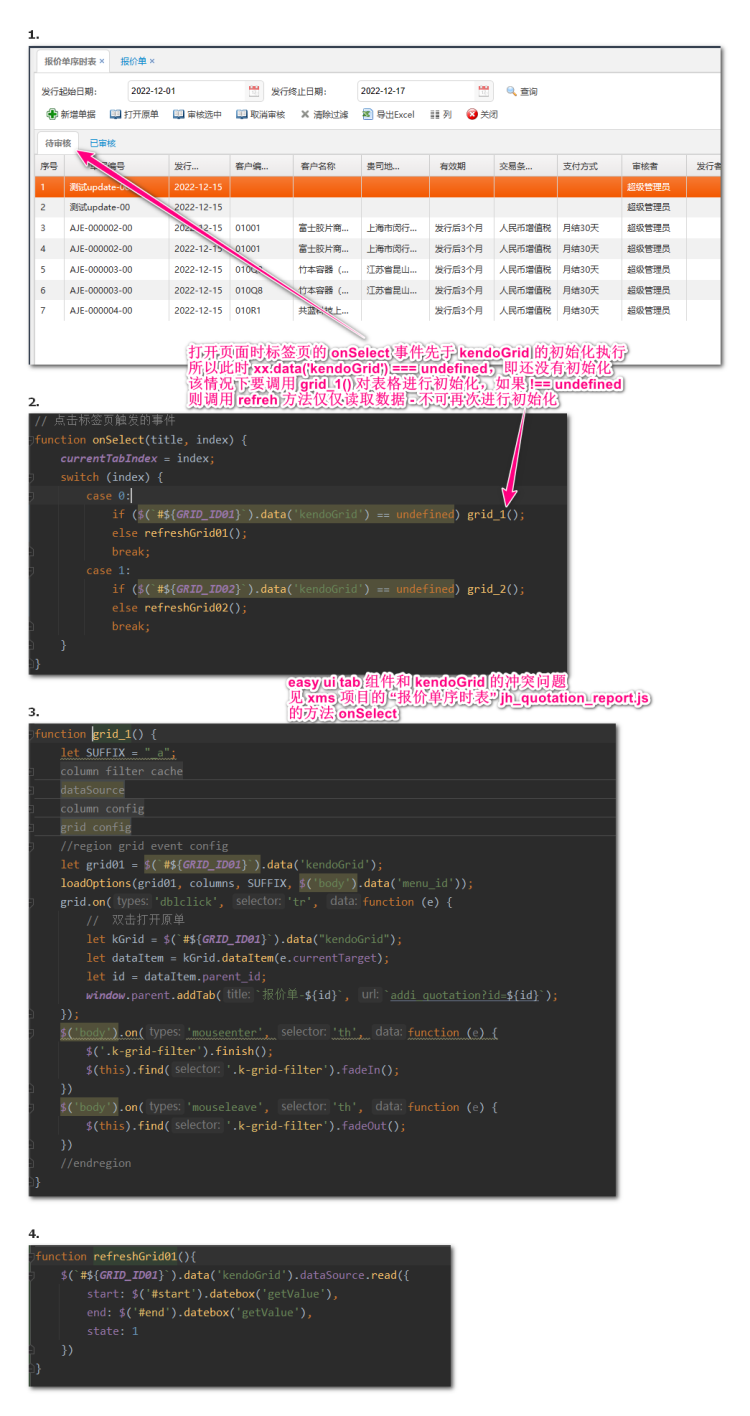
结合 easy ui tab 多表格的冲突问题