
vuepress
概述
原本打算使用 docsify 的,自己看官网使用多个插件都失败,还是算了吧。
安装部署
安装
在 bilibili 中搜索时找到 hope 主题的 vuepress ,看上去还不错,官网地址是
https://theme-hope.vuejs.press/zh/
推荐使用 pnpm 安装,下面是创建项目的代码:
# 后面的 knowledge-base 是项目名称
# 创建过程中推荐选择使用 pnpm 作为包管理器
pnpm create vuepress-theme-hope knowledge-base

# 运行项目,根据终端的提示访问项目
# 查看配置文件 package.json 中指定的命令
pnpm vuepress dev src
npm run docs:dev
部署
我的习惯是将项目部署在子路径上,例如在域名 xdfznh.club 上部署名称为 kb 的项目,那么完整的访问路径是:https://www.xdfznh.club/kb 需要设置项目的配置文件 src/.vuepress/config.ts 的 base 为 /kb/,注意要以斜线结尾,然后编译:
# 使用下面命令编译项目
pnpm vuepress build src

# 下面是 nginx 的配置
location /kb {
  alias /projs/vuepress/knowledgebase/;
  index index.html;
  try_files $uri $uri/ /index.html;
}
在染厂云服务器中安装了 pnpm 环境,并将源码拷贝到目录 /projs/vuepress/source 下,所以线下开发电脑中更新后可以在云服务器上拉取新代码后编译后执行下面批处理拷贝编译后的项目到部署目录(暂时不制作 jenkins)
cd /projs/vuepress/source
git pull origin master
pnpm vuepress build src
rm -rf /projs/vuepress/knowledgebase.old
mv /projs/vuepress/knowledgebase /projs/vuepress/knowledgebase.old
cp /projs/vuepress/source/src/.vuepress/dist /projs/vuepress/knowledgebase/ -apr
云服务器shell脚本
在 2025年6月17日 在染厂云服务器的路径 ~/bin 下制作了 shell 脚本 vuepress.sh ,并且添加到了 PATH,在任何目录下都可通过命令 vuepress.sh 运行拉取最新代码、编译、部署的一连串动作。
本地运行
cmd 切换路径到项目根目录 D:\projs\vuepress\knowledge-base
pnpm vuepress dev src
使用
提示容器
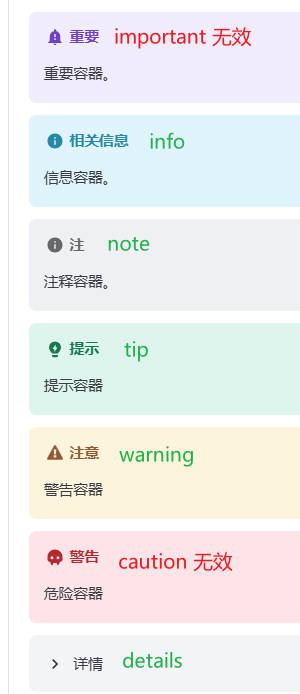
官网提供的下面提示容器,其中有两个使用无效,其他都可以
更换首页
创建项目并运行后显示的首页同官网一样,如果不要显示展示型的首页直接显示为左侧树形结构的文档页面,则修改项目 src 目录下的文件 README.md 即可。
防止缓存
在 config.js / config.ts 中添加如下代码,下面的 head 是 defineUserConfig 根节点,即和 base,title 是兄弟节点
export default defineUserConfig({
    head: [
    ['script', {type: 'text/javascript', src: '/js/index.js'}],
    ["meta", {"http-equiv": "Pragma", content: "no-cache"}],
    ["meta", {"http-equiv": "Cache-Control", content: "no-cache"}],
    ["meta", {"http-equiv": "Expires", content: "0"}]
  ],
})
然后在 nginx.conf 中做如下配置,主要是 add_header 开始的代码块
location /kb {
  alias /projs/vuepress/knowledgebase/;
  index index.html;
  try_files $uri $uri/ /index.html;

  add_header Cache-Control no-cache;
  if ($request_filename ~* .*\.(?:htm|html))
  {
      add_header Cache-Control "no-store, no-cache";
  }
}
配置
左侧添加菜单项
在 D:\projs\vuepress\knowledge-base\src\.vuepress\navbar.ts 中找到对应的层级添加,同时要在项目的同样级别路径下添加文件。例如在左侧添加了菜单项 maintenance/tools/jellyfin 那么就要在项目的目录 src\maintenance\tools 下添加同名文件 jellyfin
header中隐藏导航栏
src\.vuepress\theme.ts 中添加属性 navbar 即可显示,同理注释掉则隐藏
logo
将所有图片资源放到 src\.vuepress\public 下,在 src\.vuepress\theme.ts 的 logo 属性中填写文件名 /logo-snail.png,保证该文件的路径是 src\.vuepress\public\logo-snail.png
## emoji
emoji 在 markdown 中的使用方法是::id:,两个冒号中间为图标的ID(即图标的名称) 官网关于 emoji 的介绍见:https://theme-hope.vuejs.press/zh/cookbook/markdown/#emoji 可用的 emoji 列表:https://theme-hope.vuejs.press/zh/cookbook/markdown/emoji/
图表
markdown支持多种图表,查看使用案例
sidebar 排序
src\.vuepress\theme.ts 中使用属性 “sidebarSorter:["order"]” 进行排序 指定 "order" 后是按照文件名称排序,如果不设置该属性则默认按照中文的拼音首字母进行排序 官网排序介绍
使用 Typora 打开项目左侧 “文件” 标签页下显示的项目目录结构的排序往往是乱序,可通过给目录前面使用数字前缀进行排序,修改目录名称后注意修改项目文件 sidebar.ts 中的菜单配置
{
    text: "底层与性能",# 编译后的项目显示的名称,仅仅是左侧树形结构的显示
    prefix: "02.底层与性能/",# 对应项目中实际的目录名称,还有URL中的路径名称
    children: "structure",
    collapsible: true,
    icon: "folder",
},
katex 公式
安装
pnpm install katex
配置
// .vuepress/config.ts
import { defineUserConfig } from "vuepress";
import { hopeTheme } from "vuepress-theme-hope";

export default defineUserConfig({
  theme: hopeTheme({
    plugins: {
      mdEnhance: {
        // 使用 KaTeX 启用 TeX 支持
        katex: true,
        // 使用 mathjax 启用 TeX 支持
        mathjax: true,
      },
    },
  }),
});
案例
# 两个美元符号中间填写公式
# 下面是分式:6/5 的写法,注意美元符号内部不要有空格
$\frac{6}{5}$
资源文件
链接其他文章
采用 []() 的方法显示链接,其内容类似 /kb/develop/game-plugin/cpp/其他/创建项目编译与部署.html#创建控制台应用程序,即从域名后面的项目名称 kb 开始,文件后面采用井号挂载文章内部的锚点
本地图片
在目录 src\.vuepress\public\img 下存放图片文件,markdown 文件中通过相对路径引用图片,例如 src\成品管理 下的文件 a.md 中应用图片的方式是

vuepress 编译时会自动给静态资源前面添加 base ,即 src/.vuepress/config.js 中配置的属性 base 即最终的地址是 http://localhost/xzyHandbook ,指向的服务器上的物理地址是项目根目录,项目编译后会在根目录下创建目录 img ,图片文件都储存在这里,所以从根目录出发,下面一级的目录就是 img。由此可见项目源码目录 src\.vuepress\public 下的静态资源都会拷贝到编译后项目的根目录下(自动创建文件夹)。
本地视频
文章中要插入视频文件不要在文件的同目录下创建 video 而是要在 src/.vuepress/public 下创建目录 video,然后将视频文件放到该目录下 实施步骤:
- 将视频文件放到 src.vuepress\public\video 下
- 文档引用方式:
<ArtPlayer src="../../video/CE找冒险岛数据字幕.mp4" />安装视频插件:pnpm install artplayer - 上面第二步中的回退目录的层级数量是从文档开始到上级的 src 为止,当文档处于目录 src\develop\game-plugin 下时像步骤2就要回退两级 也可以理解为从 src 出发有几层目录到达文档
- 上面步骤2在2024年10月29日测试失败,正确的引用方式是
<video controls width="640" height="360">
  <source src="/video/更换碳带.mp4" type="video/mp4">
</video>
编译后的项目根目录下会有文件夹 video ,并且系统会自动给相对路径前面添加配置文件中指定的 base 路径,那么这里就从项目根目录下的 video 开始。后面的 width 控制视频文件显示的大小。如果一个页面中多次使用标签 video 注意给每个标签不同的 id
视频链接
属性 controls 表示提供用户操作的按钮:播放、暂停、拖拽等等,还可通过 width height 设置视频窗口大小,也可以通过 poster="https://example.com/poster.jpg" 为视频设置封面图片
上面视频引用的是网络文件,代码如下:
<video src="https://染厂云服务器/kbp/dyeWebErp/车间刷卡客户的设置班组.mp4" controls width="640" height="360">
</video>
图标
检查配置文件 src\.vuepress\theme.ts 中属性 iconAssets 导入的是哪个图标库,如果是 iconAssets: "fontawesome-with-brands", 其官网是 fontawesome官网,注意选择好图标的分类
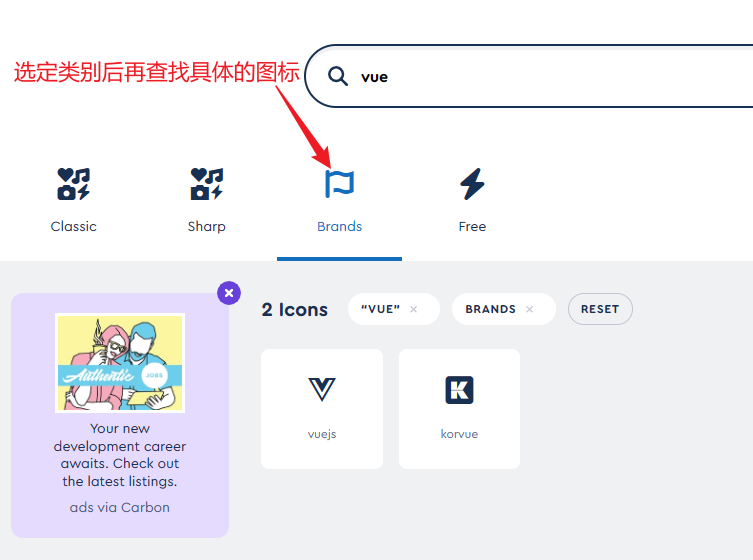
要带有前缀使用图标,例如:
---
title: N多安装
icon: "fa-brands fa-app-store"
category:
    - linux
    - centos
---
全局样式
在文件 src\.vuepress\styles\index.scss 中写全局样式,md 文件中可直接插入 html 代码。例如在 index.scss 中声明一个样式:
.block-title {
    background-color: #ffcc34;
    border-radius: 10px;
    padding: 8px;
    width: 100%;

    display: flex;
    justify-content: space-between;
}

.block-title .progress {
    color: green;
}
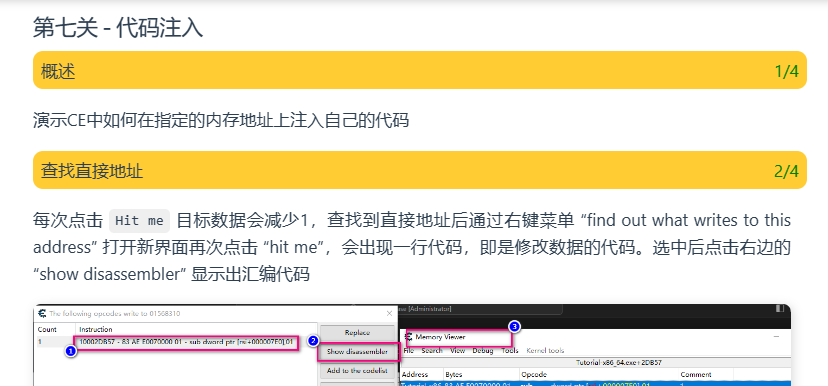
在 md 文件中由于三级标题之下的标题都不会在右边文章大纲中显示(默认配置,可通过插件 API extendsMarkdownOptions 破除),那么可通过设置该样式在显示标题的同时显示进度,同时以鲜艳的背景色明显区别于正文内容,例如在某文章中如下引用:
<div class="block-title">
   <span class="title">查找直接地址</span>
   <span class="progress">2/4</span>
</div>
上面代码显示的效果如下,在显示标题的同时在右边显示分章节的进度
也可以使用颜色边框来明显区分每个区域
<div style="border-style:solid; border-width:2px;border-color:#ff0080; padding: 10px; border-radius: 20px;">
    这里显示文章的主体内容
</div>
自定义标题深度
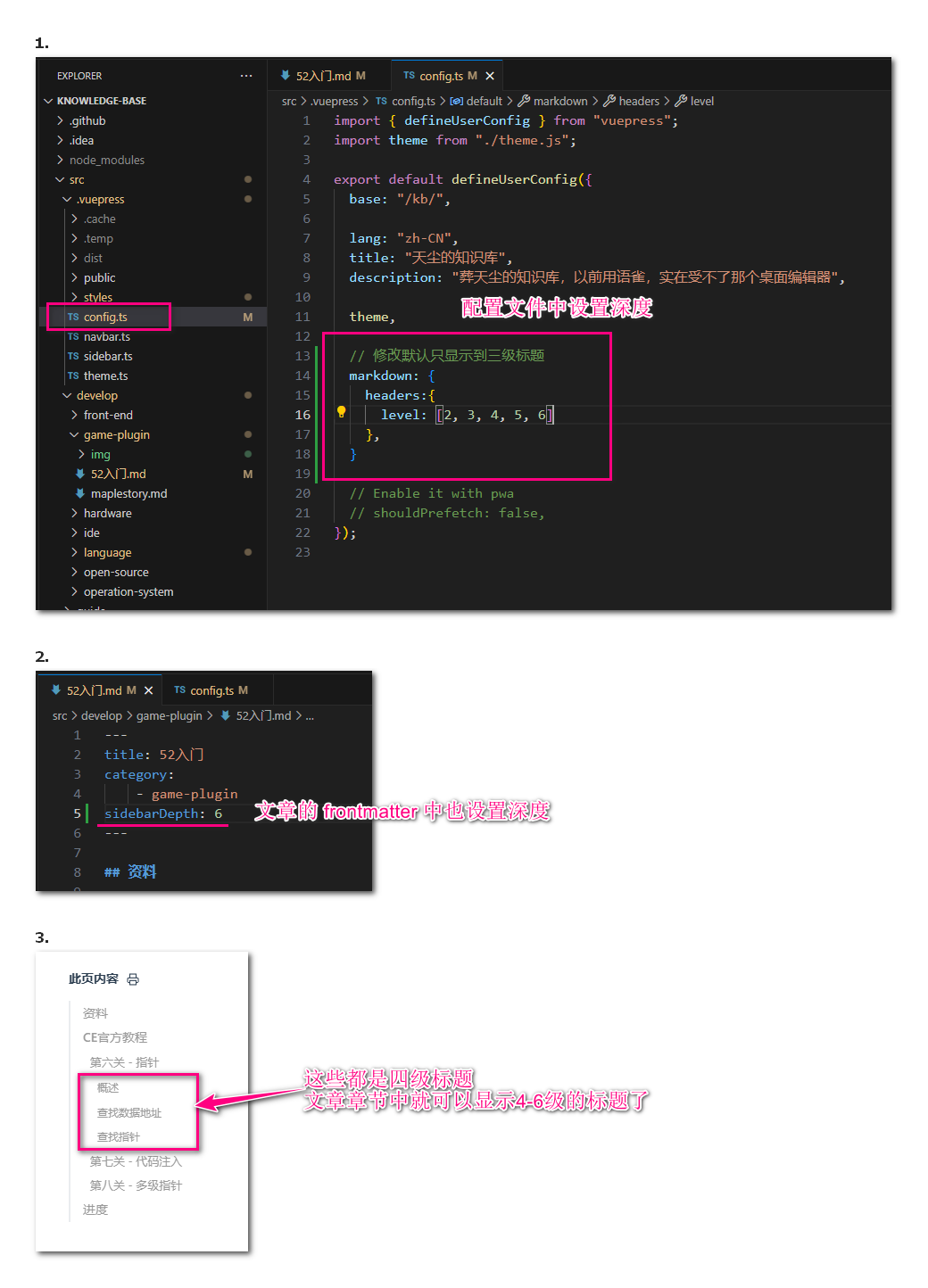
项目默认只识别到三级标题的深度,即文章的右边章节列表中只会显示到3个井号设置的三级标题,想要继续显示之后的深度需要如下设置 sidebarDepth 已经弃用,之后要使用 headerDepth
增强的引用
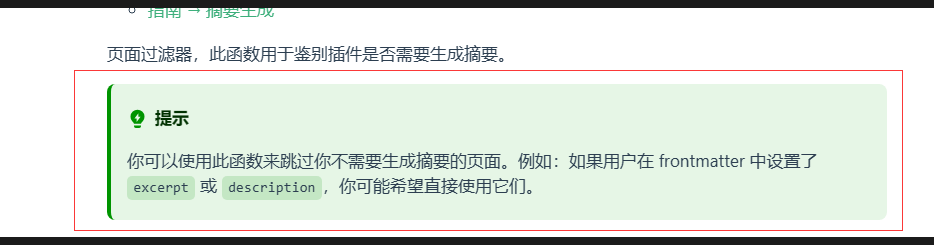
使用代码 :::tip xxxx 显示出的效果类似引用,是在其基础上使用了颜色填充,效果如下
侧边栏图标及折叠
在模式 children: "structure" 下时左侧树形目录的文件夹节点是没有图标的,叶子节点(文章节点)采用 md 文件的 frontmatter 的属性 icon 指定的图标。如果要手动为目录节点指定图标需要设置 sidebar,可查阅官网的 主题布局选项 中的侧边栏的介绍。vuepress-theme-hope 主题的项目采用文件 src\.vuepress\sidebar.ts 设置左侧侧边栏,像下面设置则当前目录节点会有指定的图标显示,但根据项目目录结构生成的所有下级非叶子节点都没有图标:
{
  text: "front-end",
  prefix: "front-end/",
  icon: "fa-brands fa-font-awesome",
  children: "structure",
  collapsible: true,
},
那么可以类推,如果想要为目录节点指定图标则要像上面代码一样手动指定
{
  text: "language",
  prefix: "language/",
  icon: "fa-brands fa-jedi-order",
  collapsible: true,
  children: [
    {
      text: "java",
      prefix: "java/",
      icon: "fa-brands fa-java",
      children: "structure",
      collapsible: true,
    },
    {
      text: "mysql",
      prefix: "mysql/",
      icon: "fa-brands fa-mendeley",
      children: "structure",
      collapsible: true,
    },
    "c","git",
  ]
},
同时要注意属性 collapsible ,项目默认是 false 表示始终展开并且不可折叠。
Lsky
下面是演示图片:
错误与提示
YAMLException
通过命令 pnpm vuepress build src 编译项目时出现下面报错:
YAMLException: end of the stream or a document separator is expected at line 5, column 2:
        - snippet
     ^
    at generateError (D:\projs\vuepress\knowledge-base\node_modules\.pnpm\js-yaml@3.14.1\node_modules\js-yaml\lib\js-yaml\loader.js:167:10)
    at throwError (D:\projs\vuepress\knowledge-base\node_modules\.pnpm\js-yaml@3.14.1\node_modules\js-yaml\lib\js-yaml\loader.js:173:9)
    at readDocument (D:\projs\vuepress\knowledge-base\node_modules\.pnpm\js-yaml@3.14.1\node_modules\js-yaml\lib\js-yaml\loader.js:1545:5)
    at loadDocuments (D:\projs\vuepress\knowledge-base\node_modules\.pnpm\js-yaml@3.14.1\node_modules\js-yaml\lib\js-yaml\loader.js:1588:5)
    at load (D:\projs\vuepress\knowledge-base\node_modules\.pnpm\js-yaml@3.14.1\node_modules\js-yaml\lib\js-yaml\loader.js:1614:19)
    at Object.safeLoad (D:\projs\vuepress\knowledge-base\node_modules\.pnpm\js-yaml@3.14.1\node_modules\js-yaml\lib\js-yaml\loader.js:1637:10)
    at module.exports (D:\projs\vuepress\knowledge-base\node_modules\.pnpm\gray-matter@4.0.3\node_modules\gray-matter\lib\parse.js:12:17)
    at parseMatter (D:\projs\vuepress\knowledge-base\node_modules\.pnpm\gray-matter@4.0.3\node_modules\gray-matter\index.js:109:17)
    at matter (D:\projs\vuepress\knowledge-base\node_modules\.pnpm\gray-matter@4.0.3\node_modules\gray-matter\index.js:50:10)
    at MarkdownIt.md.render (file:///D:/projs/vuepress/knowledge-base/node_modules/.pnpm/@mdit-vue+plugin-frontmatter@0.12.1/node_modules/@mdit-vue/plugin-frontmatter/dist/index.mjs:6:45)
问题是某个 md 文件的头部,使用 category 和减号为文章分类的行上有问题,删除这部分内容后编译通过。